

WordPress ecommerce SEO is the work of making an online store built on WordPress, almost always with the WooCommerce plugin, easy for search engines to crawl, understand and rank. Most of the job is not about adding plugins. WooCommerce already handles several SEO basics on its own, such as keeping the cart and checkout out of search results and adding product structured data. The real wins come from checking three WordPress settings, deciding what happens to filter and sort URLs, writing useful product and category pages, and making sure your SEO plugin and theme do not duplicate or contradict what WooCommerce already does.
This guide shows what WooCommerce does by default (checked in its source code), which settings to review, and the order in which to audit a live store. To see how organic search fits into your store’s overall growth, take the Revenue Growth Diagnosis.
What WordPress ecommerce SEO involves
On a WooCommerce store, three layers decide how search engines see your pages, and each one is controlled in a different place.
The first layer is WordPress itself: whether the site is visible to search engines, how URLs are structured, and the default XML sitemap. The second layer is WooCommerce, which creates the product, category and tag URLs, decides which store pages should never be indexed, and outputs structured data. The third layer is your SEO plugin and your theme, which usually manage titles, meta descriptions, canonical tags and a replacement sitemap, and sometimes add their own structured data.
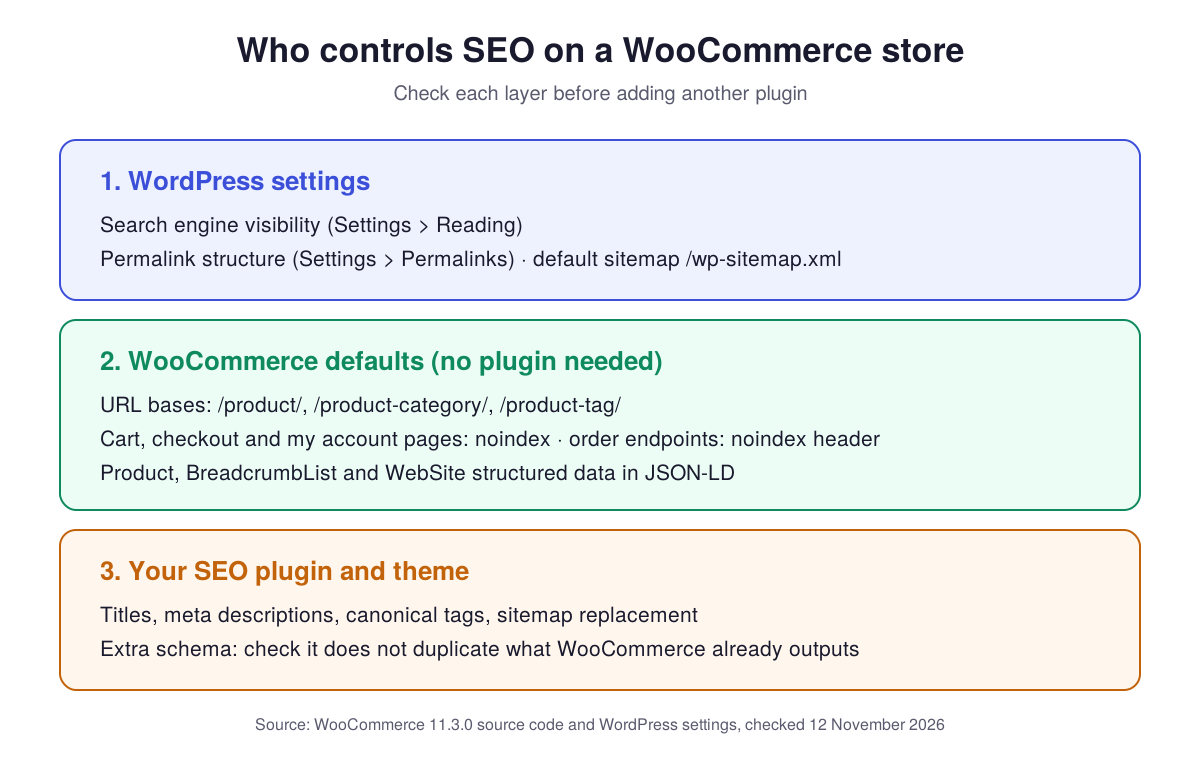
Most WooCommerce SEO problems come from the overlap between layers two and three: two plugins outputting the same markup, a setting changed in one place and undone in another, or URL changes made without redirects. The general principles of search for online stores, from keyword targeting to authority, are covered in the ecommerce SEO optimization guide. This article focuses on what is specific to WordPress and WooCommerce.
Start with three WordPress settings
These three checks take a few minutes and prevent the most damaging mistakes.
- Search engine visibility. In the WordPress dashboard, go to Settings, then Reading, and make sure “Discourage search engines from indexing this site” is unchecked. WooCommerce’s own SEO guide flags this box as easy to forget after a launch or a migration, and it quietly keeps Google out until it is fixed (WooCommerce, May 2026).
- Permalinks. In Settings, then Permalinks, choose a readable structure such as “Post name” for posts and pages. Set this before launch, because changing it on a live store changes every URL.
- XML sitemap. WordPress generates a default sitemap at yoursite.com/wp-sitemap.xml, and SEO plugins such as Yoast can replace it with their own (WooCommerce, May 2026). Use one sitemap, not both, and submit it in Google Search Console so you can see which product and category URLs are indexed and which are not.
What WooCommerce already handles by default
Before installing anything, it helps to know what the platform already does. The table below comes from a reading of the WooCommerce 11.3.0 source code (WooCommerce on GitHub), checked on 12 November 2026. Behaviour can differ on older versions or if a theme or plugin overrides it.
| Area | Default behaviour in WooCommerce | What it means for you |
|---|---|---|
| Product URLs | Base “product”, so URLs look like /product/blue-mug/ | Readable by default; changing the base later requires redirects |
| Category and tag URLs | Bases “product-category” and “product-tag” | Can be renamed in Settings, then Permalinks, before launch |
| Cart, checkout, my account | These pages get a “noindex, nofollow” robots directive | No plugin needed to keep them out of search |
| Order and account endpoints | Sent with an “X-Robots-Tag: noindex” header, as are file download links | Order confirmation pages stay out of the index |
| Add-to-cart links | Marked rel=”nofollow” when they point to an add-to-cart URL rather than the product page | Reduces crawling of action URLs, though nofollow is a hint, not a block |
| Structured data | JSON-LD for Product (with Offer or AggregateOffer), BreadcrumbList and WebSite | Product data already exists; check before adding more |
Two practical consequences follow. First, a WooCommerce store does not need an SEO plugin to hide its cart or checkout pages. Second, any plugin or theme that adds Product markup may create a second, competing set of product data on the same page, which is covered below.
Choose your product URL structure once
In Settings, then Permalinks, WooCommerce offers four product URL options: Default (/product/), Shop base (/shop/), Shop base with category, and a Custom base. The settings screen states that a base must be set, otherwise WordPress uses the default (WooCommerce 11.3.0, permalink settings). Removing the base entirely is not a native option and requires an extra plugin or custom code.
For a new store, the default is a sound choice: short, stable and understood by every SEO plugin. “Shop base with category” puts the category in the product URL, which reads well but ties each product’s address to its category. Moving a product to another category can then change its URL.
For a live store, the question is not which structure is best but what a change would cost. Every indexed product URL would need a 301 redirect to its new address, and internal links, the sitemap and any links from other sites would point to the old one in the meantime. Unless the current structure causes a measurable problem, leave it in place.
Decide what happens to filter and sort URLs
Filtering and sorting is where WooCommerce stores most often create URLs that waste crawling. The classic “Filter Products by Attribute” widget adds parameters such as ?filter_color=blue to category URLs, and WooCommerce’s sorting adds ?orderby=price (WooCommerce 11.3.0 source). Each combination of filters and sort orders is a new URL showing almost the same products.
The widget marks its filter links rel=”nofollow”, which helps, but Google describes nofollow on filter links as generally less effective over time than its preferred methods, and notes that every link to a given URL must carry it to work (Google, faceted navigation, updated December 2025). Google’s guidance comes down to one decision per type of filter: do these pages need to appear in search?
- If they do not, Google recommends preventing their crawling, for example with robots.txt rules on the filter and sort parameters, while keeping the unfiltered category page crawlable.
- If they do, Google asks that the URLs follow its best practices, such as using the standard & separator and returning a 404 for filter combinations with no products. For a filter that matches a real search, such as “blue ceramic mugs”, a dedicated category or subcategory with its own clean URL, title, copy and internal links is usually easier to manage than a parameter URL.
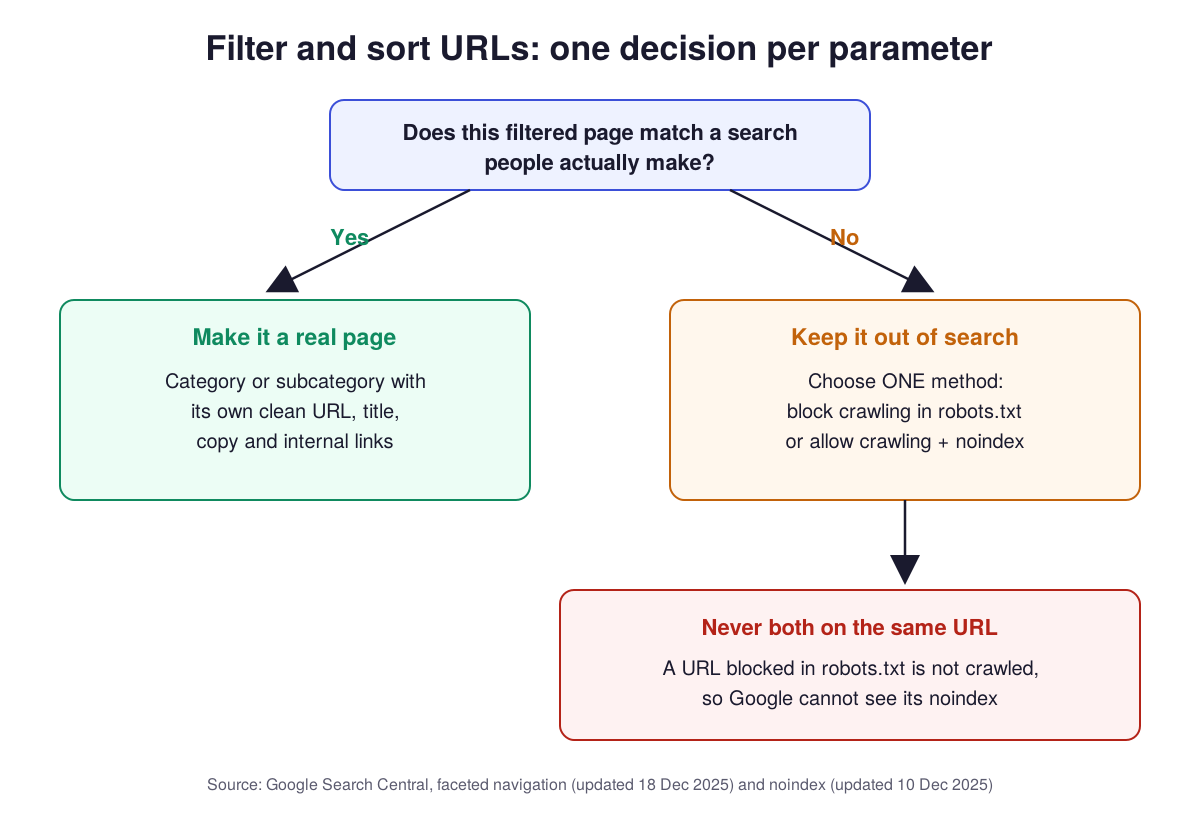
One rule prevents a common contradiction: do not combine a robots.txt block with a noindex tag on the same URL. Google cannot see a noindex directive on a page it is not allowed to crawl, so a blocked URL can stay indexed if other pages link to it (Google Search Central, noindex, updated December 2025). Choose one method per parameter.
Newer filter blocks and third-party filter plugins can build URLs differently from the classic widget, so check the actual URLs your store produces before writing rules. The method for auditing filters, pagination and status codes on any platform is detailed in the ecommerce technical SEO guide.
Write product and category pages people can choose from
Settings make pages crawlable; content makes them worth ranking. WooCommerce’s own guidance suggests 150 to 300 words of product copy that covers what matters in the category, what is included and anything a buyer would want to know before ordering (WooCommerce, May 2026). Treat that range as a starting point, not a quota: a replacement part may need compatibility details, a gift product may need sizing and delivery information.
Three habits matter most on WooCommerce. Write your own descriptions rather than reusing manufacturer text that other stores also publish. Use the category description field, which many themes display above or below the product grid, to explain the range and help shoppers choose. And give each important category a title and meta description written for the search behind it, which you can set in your SEO plugin.
Matching each page to the right query starts with research: the ecommerce keyword research guide shows how to map transactional terms to product pages and broader terms to categories. For the anatomy of a product page that ranks and converts, see how to do SEO for ecommerce product pages.
Check your structured data for duplicates
Because WooCommerce already outputs Product markup on product pages, adding a second source is the most common structured data issue on WordPress stores. Some SEO plugins and themes add their own Product or review markup. Depending on how they are configured, the page can end up with two Product entities carrying different prices, ratings or availability.
The check is simple. Run a product URL through Google’s Rich Results Test or view the page source and search for “@type”: “Product”. If you see two separate Product blocks, keep the one that is complete and accurate, and disable the other in the plugin or theme settings. Whatever remains must match what shoppers see on the page: price, currency, stock status and reviews.
Google distinguishes two product features. Product snippets suit pages where people cannot buy directly, such as reviews, while merchant listings suit pages where customers can purchase, with extra details such as shipping and return policy (Google Search Central, product structured data, updated December 2025). A WooCommerce product page falls in the second group, so shipping and return details are worth adding where your setup supports them.
One correction to older advice: some WordPress ecommerce guides still recommend FAQPage markup to win rich results. Google removed the documentation for the FAQ rich result on 15 June 2026 because the feature is no longer shown in Google Search results (Google Search Central, documentation updates). A visible FAQ can still help shoppers; the markup alone will not produce a rich result in Google.
Pick one SEO plugin and configure it fully
The searches around this topic show that store owners mostly ask which plugin to install. The main options observed in Google results on 12 November 2026 are Yoast SEO (with a paid Yoast WooCommerce SEO add-on listed at $178.80 per year on the WooCommerce marketplace), Rank Math, All in One SEO and SEOPress. Each one manages titles, meta descriptions, canonical tags and sitemaps.
The choice matters less than three rules:
| Rule | Why it matters |
|---|---|
| Run one SEO plugin only | Two plugins output two sets of titles, canonical tags and sitemaps that can contradict each other |
| Decide who owns the sitemap | Keep either the WordPress default or the plugin sitemap, and submit that one |
| Decide who owns product markup | Keep either WooCommerce’s Product data or the plugin’s, then verify the result |
After any plugin change, recheck a product page, a category page and the sitemap. Plugin updates and theme changes are a common moment for settings to shift silently.
Keep the store fast enough
WooCommerce stores tend to accumulate plugins, scripts and large images, and each one adds weight to product and category pages. Test speed on a phone-sized screen as well as on desktop. Start with the heaviest templates (category grids with many images, product pages with galleries and review widgets), compress images, remove plugins that no longer serve a purpose, and check that your caching setup excludes the cart and checkout, which must stay dynamic.
A WooCommerce SEO self-audit, in order of risk
Run these checks in this order. The first ones can remove a store from search entirely; the last ones refine pages that are already indexed.
- Visibility: “Discourage search engines” is unchecked, and the home, category and product pages return a 200 status without noindex.
- Sitemap: one sitemap is live, submitted in Search Console, and lists products and categories, not cart or filter URLs.
- URL changes: any past change to permalinks or product bases has 301 redirects from the old URLs.
- Filters and sorting: each filter and sort parameter has one handling rule, and no URL is both blocked in robots.txt and tagged noindex.
- Duplicate markup: product pages carry a single, accurate Product entity.
- Plugins: one SEO plugin is active and fully configured.
- Content: your best-selling products and main categories have original, useful copy and specific titles.
- Speed: heavy templates are tested on mobile and the obvious weight removed.
If the store sells across several platforms or plans a migration, run the same audit before and after, so you can tell which changes moved organic traffic and revenue.
From a working store to organic revenue
WordPress and WooCommerce give store owners full control over URLs, content and markup, and WooCommerce already covers more SEO basics than most guides admit. The risk lies less in missing features than in layers that overlap: a plugin duplicating product data, filter URLs left without a rule, or a URL change made without redirects. Fixing those first, then investing in product and category content, is what turns an indexed store into one that earns sales from search.
Organic search is one revenue lever among several, and its value depends on how well the traffic it brings converts and how it compares with your other channels. If you want an outside view of where your store’s growth is coming from and where it is leaking, start with the diagnosis, and if you would rather hand over the SEO work itself, the ecommerce SEO services page explains how Anaia Marketing approaches it.
FAQ
Q1. Can you do SEO with WordPress?
Yes. WordPress lets you control URLs, titles, content and structured data on every page, and WooCommerce adds product and category pages that can rank like any other page. Many stores add one SEO plugin to manage titles, meta descriptions and the sitemap.
Q2. Is WordPress good for ecommerce SEO?
WordPress with WooCommerce gives a high level of control over URLs, content and markup, and native blogging makes it easy to publish guides that link to products. The trade-off is maintenance: plugins, themes and updates can create duplicate markup or slow pages if no one checks them after each change.
Q3. Do I need a paid WooCommerce SEO plugin?
Not to start. WooCommerce already keeps the cart and checkout out of search and outputs Product structured data, and the free versions of the main SEO plugins manage titles, meta descriptions and sitemaps. A paid add-on is worth considering when you need features your free plugin lacks, after checking it does not duplicate what WooCommerce already outputs.
Q4. Should I remove /product/ from WooCommerce URLs?
There is no SEO requirement to remove it, and WooCommerce does not offer a no-base option natively. On a live store, removing it changes every product URL and requires 301 redirects for all of them. It is rarely worth the risk unless the store is new.
Q5. What is the difference between WordPress SEO and WooCommerce SEO?
WordPress SEO covers the site as a whole: visibility settings, permalinks, the sitemap, posts and pages. WooCommerce SEO covers what the store adds on top: product, category and tag pages, filter and sort URLs, product structured data and the store pages that should stay out of search. A store needs both.

Founder & CEO of Anaia Marketing, Dominique doesn’t manage traffic. He builds systems that grow revenue, predictably, measurably, without guesswork. With 15+ years at the intersection of search strategy and editorial precision, he focuses on what matters : turning organic growth into a compounding asset that moves revenue.